Instructor Manual
More
ACTIVITIES
To view the performance of your students in different test preps, assessments created by you, pre and post assessments; click the More tab and select the Activities option. You can search a particular test activity by using the search box, you can sort the results further using the Test Mode and Test Type.
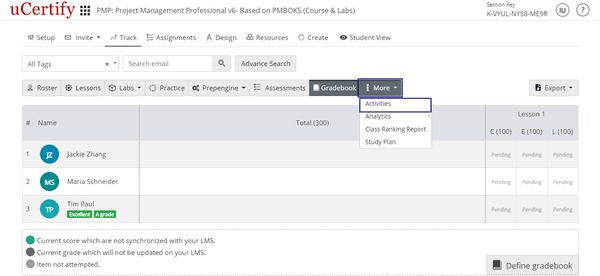
Figure 4.40: More Tab with Activities Option
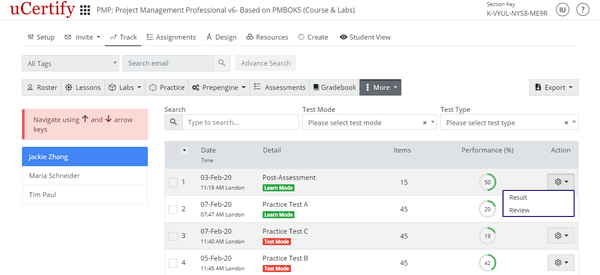
Figure 4.41: Activities Page with Option to View or Delete Test
Figure 4.40: More Tab with Activities Option
Figure 4.41: Activities Page with Option to View or Delete Test
ANALYTICS
To view or export the competency, class performance, or test analytics of student; click the More tab, click Analytics, and select the desired option.

Figure 4.42: More Tab with Analytics Options
In Test Analytics, you can filter and export the results on the basis of the following three Report types:
To do so, on the Test Analytics page, click the Report Type drop-down, and select the required filter criteria.

Figure 4.43: Test Analytics Page with Report Type Options
Figure 4.42: More Tab with Analytics Options
In Test Analytics, you can filter and export the results on the basis of the following three Report types:
- Best Score
- Last Score
- All Attempts
To do so, on the Test Analytics page, click the Report Type drop-down, and select the required filter criteria.
Figure 4.43: Test Analytics Page with Report Type Options
CLASS RANKING REPORT
To view the class ranking report of students, click the More tab and select Class Ranking Report option.

Figure 4.44: More Tab with Class Ranking Report Option
To change the section, click the Section drop-down and select the desired option. To view reports on the basis of the test type, select the desired test type from the drop-down.

Figure 4.45: Class Ranking Report Page with Section and Test Type Drop-downs
Figure 4.44: More Tab with Class Ranking Report Option
To change the section, click the Section drop-down and select the desired option. To view reports on the basis of the test type, select the desired test type from the drop-down.
Figure 4.45: Class Ranking Report Page with Section and Test Type Drop-downs
STUDY PLAN
To view the study planner of your students enrolled in your section/course, click the More tab, and select the Study Plan option.

Figure 4.46: More Tab with Study Plan Option