Navigation menu
hello Guest

Student Manual
Annotations
Here's how to highlight any text in the e-book section, and write a comment:
Select the text you want to highlight and click the Annotate Adder icon from the pop-up box.
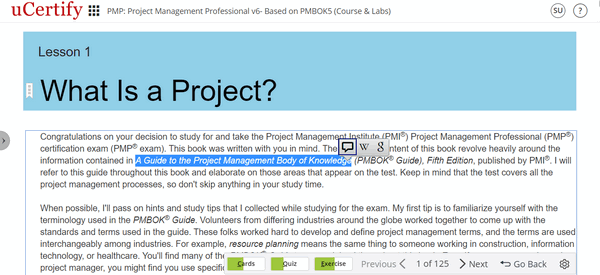
Figure 8.2: Annotate Icon
Select any of the color in which you want your text to be highlighted, add comments, links, media title, upload file, and add tags. Click the Save button.
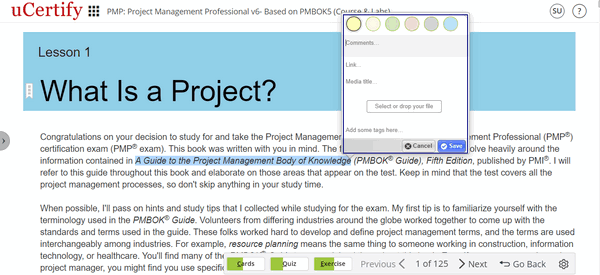
Figure 8.3: Annotation Options Modal Box
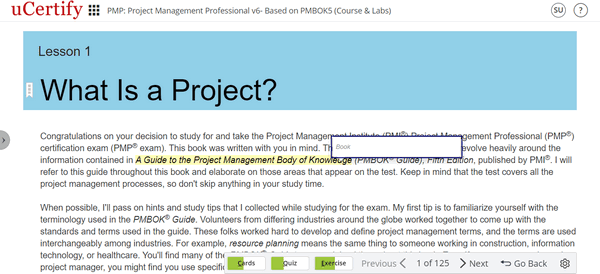
Figure 8.4: Comment on the Highlighted Text
Select the text you want to highlight and click the Annotate Adder icon from the pop-up box.
Figure 8.2: Annotate Icon
Select any of the color in which you want your text to be highlighted, add comments, links, media title, upload file, and add tags. Click the Save button.
Figure 8.3: Annotation Options Modal Box
Figure 8.4: Comment on the Highlighted Text