Navigation menu
hello Guest

Student Manual
Interactive Transcripts
In interactive transcripts each word is clickable. You can clip a specific part of the video by clicking on a word or a portion of the text. Also, each step mentioned in the video will be highlighted in the transcripts as per the voiceover.
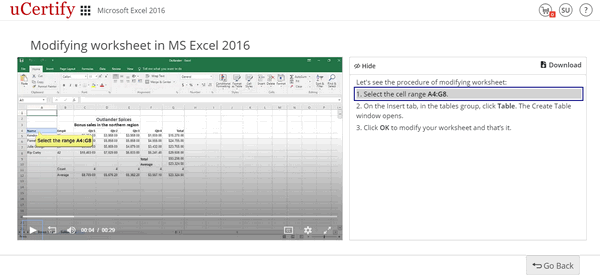
Figure 9.6: Lab Video with Interactive Transcript
After watching the steps required to perform task, click the Go back button.
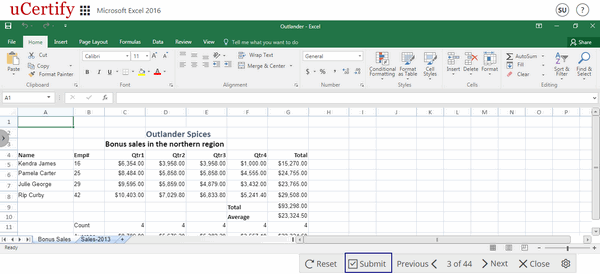
Figure 9.7: Lab Video Page with Go Back Button
Click the minimize button. Attempt the lab and click the Submit button to validate your task performed.
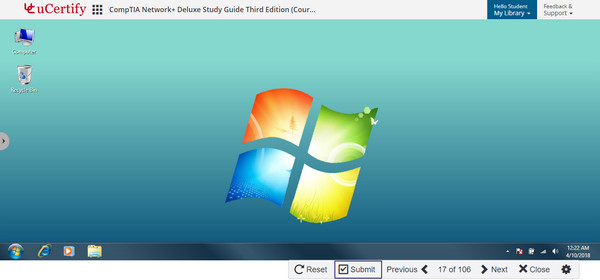
Figure 9.8: Submit Lab Task
The explanation lines will appear in red and green colors with the show-steps option. The green color refers to correct steps, red color refers to missed steps, and show-steps provide the process to attempt the task.
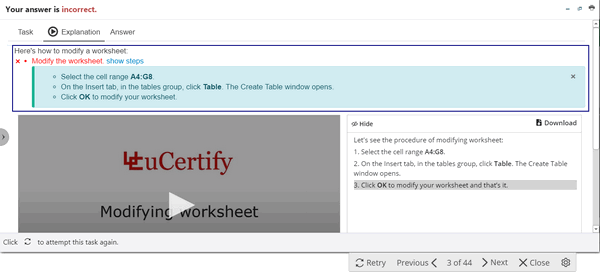
Figure 9.9: Explanation Tab With Correct and Incorrect Answers and Method to Perform the Lab
Figure 9.6: Lab Video with Interactive Transcript
After watching the steps required to perform task, click the Go back button.
Figure 9.7: Lab Video Page with Go Back Button
Click the minimize button. Attempt the lab and click the Submit button to validate your task performed.
Figure 9.8: Submit Lab Task
The explanation lines will appear in red and green colors with the show-steps option. The green color refers to correct steps, red color refers to missed steps, and show-steps provide the process to attempt the task.
Figure 9.9: Explanation Tab With Correct and Incorrect Answers and Method to Perform the Lab