Navigation menu
hello Guest

Student Manual
Navigate to study planner
To open the Study Planner, click the first tab on the right side of the Dashboard.
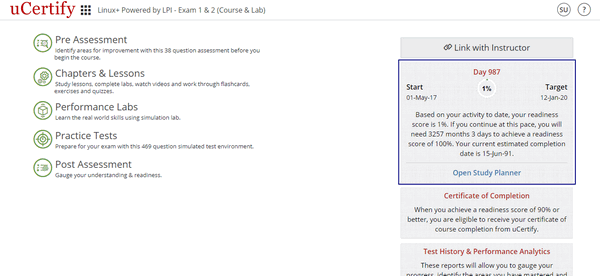
Figure 10.1: Course Dashboard with Study Planner Tab
Your Study Planner page will open for that respective course.
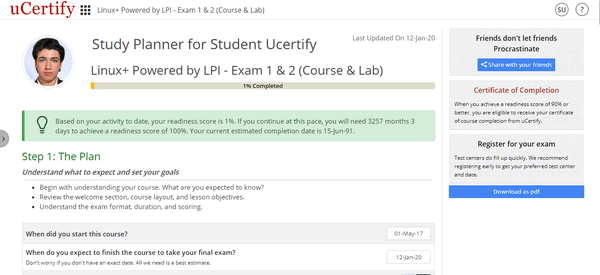
Figure 10.2: Study Planner Page
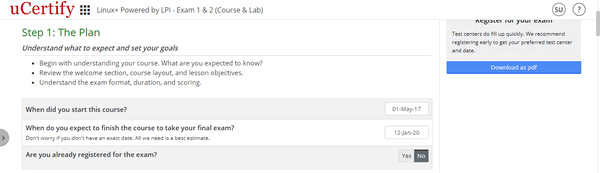
Figure 10.3: Step 1 of Study Planner

Figure 10.4: Step 2 of Study Planner
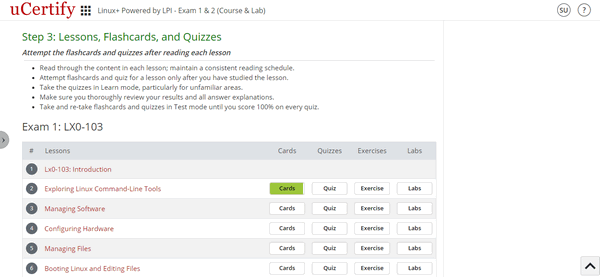
Figure 10.5: Step 3 of Study Planner
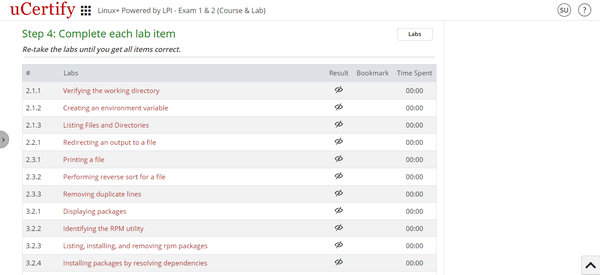
Figure 10.6: Step 4 of Study Planner

Figure 10.6: Step 5 of Study Planner

Figure 10.8: Step 6 of Study Planner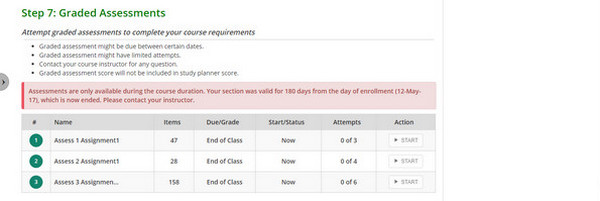
Figure 10.9: Step 7 of Study Planner
The progress bar on the top displays the percentage of course you have studied. If the bar is 100% Completed indicates that you have completely covered the course and are now ready for the exam.
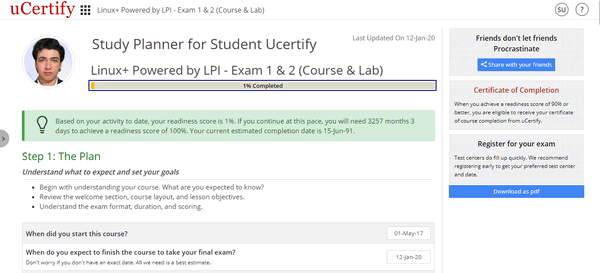
Figure 10.10: Study Planner Page with Progress Bar
If you click the Share with your friends button, a window appears by which you can share your planner with your friends on Facebook, Twitter, and Google+. You can also email your friends the URL of the study planner by just copying it from the text box.
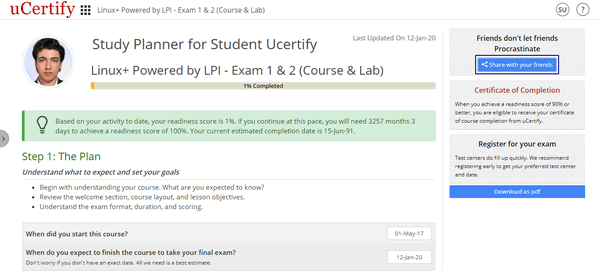
Figure 10.11: Share Study Planner with Friends Button
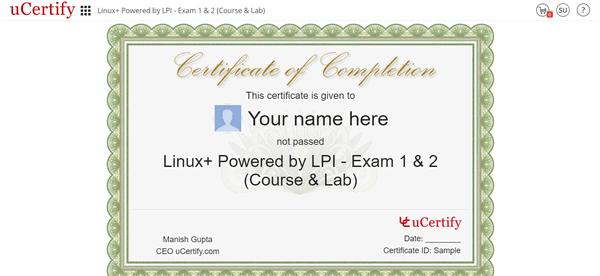
Figure 10.12: Certificate of Course Completion
Your Study Planner page will open for that respective course.
Figure 10.2: Study Planner Page
Figure 10.3: Step 1 of Study Planner
Figure 10.4: Step 2 of Study Planner
Figure 10.5: Step 3 of Study Planner
Figure 10.6: Step 4 of Study Planner
Figure 10.8: Step 6 of Study Planner
Figure 10.9: Step 7 of Study Planner
The progress bar on the top displays the percentage of course you have studied. If the bar is 100% Completed indicates that you have completely covered the course and are now ready for the exam.
Figure 10.10: Study Planner Page with Progress Bar
If you click the Share with your friends button, a window appears by which you can share your planner with your friends on Facebook, Twitter, and Google+. You can also email your friends the URL of the study planner by just copying it from the text box.
Figure 10.11: Share Study Planner with Friends Button
Figure 10.12: Certificate of Course Completion